
People do not always search by typing. A shopper may point a phone at a pair of shoes, a homeowner may photograph a kitchen fixture, or a traveler may use an image to identify a landmark. These image-led journeys are part of multimodal search—and they have become easier for website owners to measure.
On September 24, 2026, Google announced a new multimodal search filter in Search Console. It helps site owners separate web search activity that starts with an image from activity that starts with a typed query. For U.S. retailers, publishers, service businesses, and marketers, this is a useful new lens on visual SEO.

What is multimodal search?
Traditional web search usually starts with words. Multimodal search can use an image as the starting point. A person might take a picture, upload an image, or select something on a phone screen to find related information and pages.
Google’s new Search Console reporting covers image-led web searches from:
- Google Lens, when someone searches using a photo or camera view.
- Circle to Search on Android, when a person circles or selects something on the screen.
- Image uploads to Google Search, when a user submits a picture as the search input.
- Chrome’s “Search this image” feature, including the right-click image search experience.
This is not the same as traffic from the Google Images tab. Google labels that separately as “Image.” The new filter is under the “Web” search type and distinguishes text-based web searches from multimodal web searches.
What changed in Google Search Console in 2026?
Google announced the multimodal reporting update on September 24, 2026, and said it was rolling out globally. The filter is available in the Search results Performance report and in the Generative AI features report. Data appears when a site receives traffic from these image-led searches; an empty report does not automatically mean that tracking is broken.
In the regular Search results Performance report, you can review standard search performance metrics such as clicks, impressions, click-through rate, and average position, then filter the report to “Web: multimodal.” You can compare that view with “Web: text-based” to see whether image-led discovery is contributing to your search visibility.
The separate Generative AI performance report focuses on impressions from Google Search AI features, including AI Overviews and AI Mode. It provides views by page, country, device, and date. Google says the report is available globally as of August 31, 2026. The multimodal filter lets you examine image-led search visibility in that AI report as well.
How to find multimodal search data
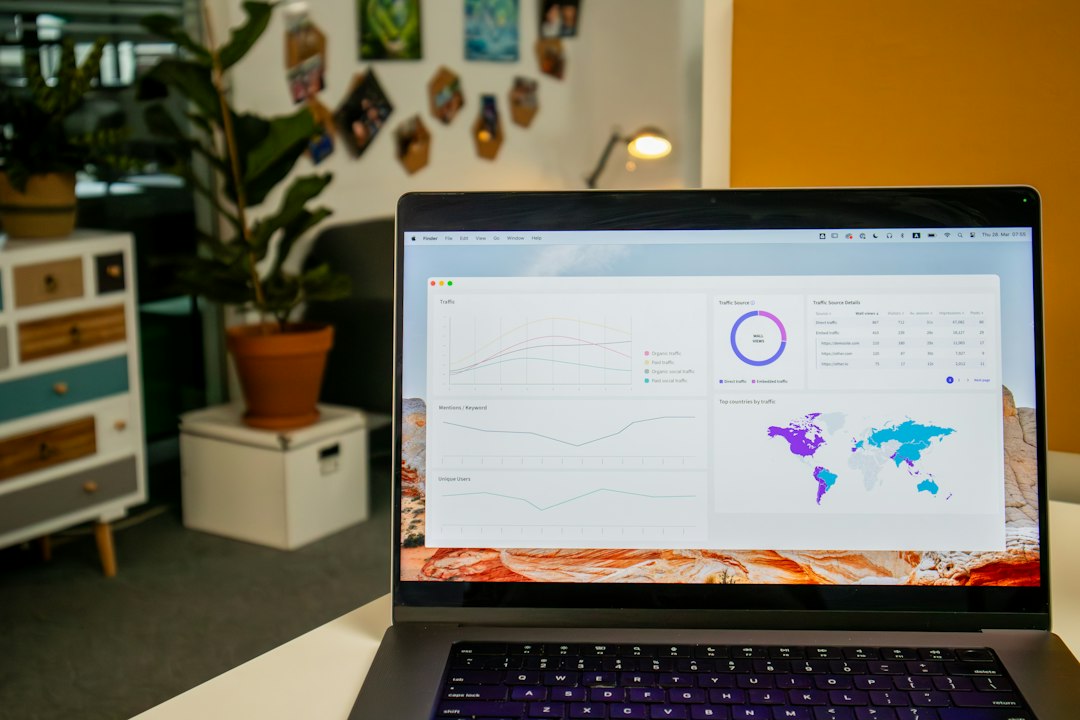
You can start with a verified website property in Google Search Console. Then follow this workflow:
- Open the Search results Performance report. Use a date range long enough to establish a baseline. If your site is new or has limited traffic, begin with the longest useful period available.
- Open the Search type filter. Under Web, select “Multimodal.” The text-based option represents searches that begin with words typed into Google’s standard search bar.
- Review the Pages tab first. Identify the landing pages that receive multimodal impressions and clicks. Product pages, project galleries, tutorials, and location pages may behave differently.
- Segment by country and device. For a U.S.-focused business, check the United States country segment and compare mobile with desktop performance. Do not assume every audience uses visual search in the same way.
- Compare trends over time. Use weekly or monthly views to reduce the effect of day-to-day fluctuations. Export the report if you want to combine it with analytics, sales, or lead data.
- Check the Generative AI report separately. Review which pages earn impressions in AI Overviews and AI Mode, then use the multimodal filter to inspect image-led visibility in that report.
Google’s documentation explains the available Search Console Performance report filters and dimensions and its Generative AI performance report. Keep the two reports distinct: the standard Performance report includes clicks and other familiar metrics, while the Generative AI report is an impressions-focused view.
How to improve your website for visual search
The new report is a measurement tool, not a shortcut to rankings. You cannot force a page to appear for every camera search. You can, however, make your images and the pages around them easier for people and search systems to understand.
1. Use original, useful images
Show the actual product, finished project, place, or process discussed on the page. A U.S. home services company could publish clear photos of a completed bathroom remodel; an online store could show a product from multiple angles. Original images give visitors information that a generic stock photo cannot.
2. Write descriptive file names and alt text
Replace names such as IMG_0048.jpg with concise descriptions such as white-oak-kitchen-cabinet-hardware.jpg. Write alt text that explains what is genuinely visible in the image. For example: “Brushed brass cabinet pulls installed on white oak kitchen drawers.” Avoid repeating keywords or turning alt text into a list of search phrases.
3. Put images beside relevant page content
Place each image near the paragraph that explains it. Add a useful caption when it provides context, such as the product model, material, project stage, or location. A photo of a kitchen faucet should appear on a page that discusses that faucet—not on an unrelated page simply because the image looks attractive.
4. Make images crawlable and mobile-friendly
Use standard HTML image elements with a real image URL, provide responsive versions for different screen sizes, and avoid relying only on CSS background images for important visual content. Compress files without making them blurry, and check that the page loads comfortably on a phone. Google’s Image SEO best practices explain how image discovery, page context, responsive images, and alt text work together.
5. Add accurate structured data where it fits
If you sell products, use the appropriate product information and structured data supported by your store setup. For editorial pages, make sure the page’s main image is relevant and that the page’s structured data accurately describes its content. Structured data helps search engines interpret a page; it does not guarantee a rich result or a visual-search placement.

A practical visual SEO audit for U.S. businesses
Set aside 30 minutes to review a small group of important pages:
- Choose five to ten pages that matter to revenue or lead generation.
- Check that each page has clear, relevant images rather than decorative filler.
- Review file names, alt text, captions, and the surrounding copy.
- Test the pages on a phone and look for slow-loading or oversized images.
- In Search Console, compare multimodal and text-based performance for those pages.
- Record the date, country, device, clicks, and impressions so you can compare the same segments next month.
If a page receives multimodal impressions but few clicks, inspect whether the result is relevant and whether the page gives visitors a compelling next step. If a page has no multimodal data, do not immediately rewrite it: the audience may simply have little image-led demand for that topic.
Common mistakes to avoid
- Assuming visual SEO means adding more images. Relevance and usefulness matter more than image count.
- Stuffing alt text with keywords. Write for accessibility and accurate description.
- Confusing Web multimodal with Google Images. They are separate search types in Search Console.
- Treating impressions as sales. Pair Search Console data with analytics, calls, form submissions, and ecommerce conversions.
- Making decisions from a tiny sample. Allow enough time and data to identify a meaningful pattern.
Frequently asked questions
Is multimodal search the same as Google Images?
No. Multimodal web search includes experiences such as Lens, Circle to Search, image uploads, and Chrome image search. Google Images traffic is reported under the separate Image search type.
Does the new filter guarantee more website traffic?
No. It helps you measure activity that already reaches your site from supported image-led searches. Better images and clearer pages can improve the experience, but no specific ranking or traffic increase is guaranteed.
Should small businesses care about visual SEO?
It is worth testing if customers choose products, compare designs, identify places, or evaluate completed work visually. Retailers, restaurants, real estate professionals, contractors, and travel businesses may all have useful images to measure and improve.
Final takeaway
Google Search Console’s multimodal filter gives marketers a clearer view of discovery that starts with an image rather than a typed keyword. Start with your most valuable pages, inspect the image-led data, and improve the photos, descriptions, accessibility, and mobile experience where the evidence points to an opportunity. For the wider AI-search picture, read our guide to optimizing for Google AI Overviews and AI Mode and our comparison of GEO vs. traditional SEO.